Overview of Jira’s navigation
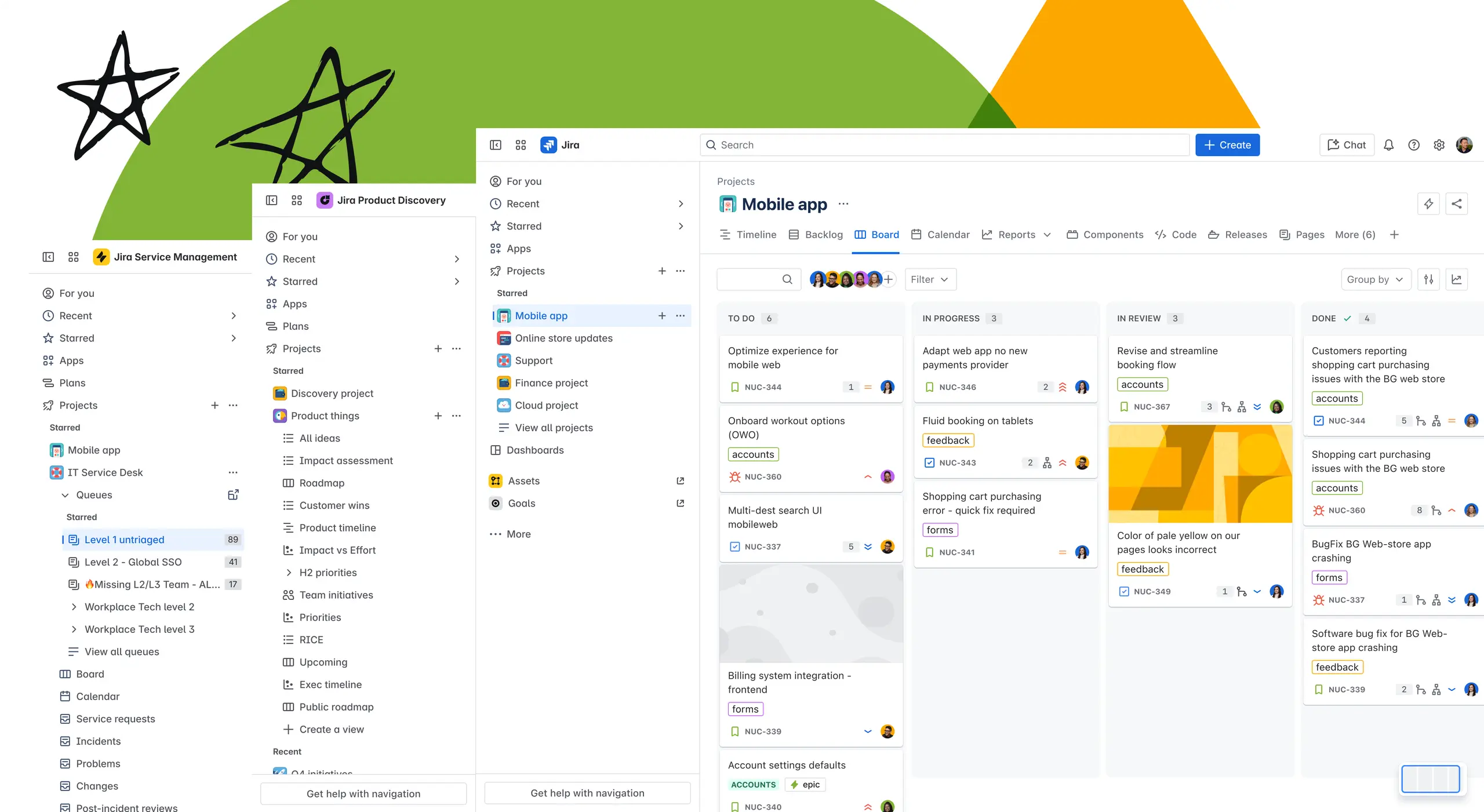
What is Jira’s navigation?
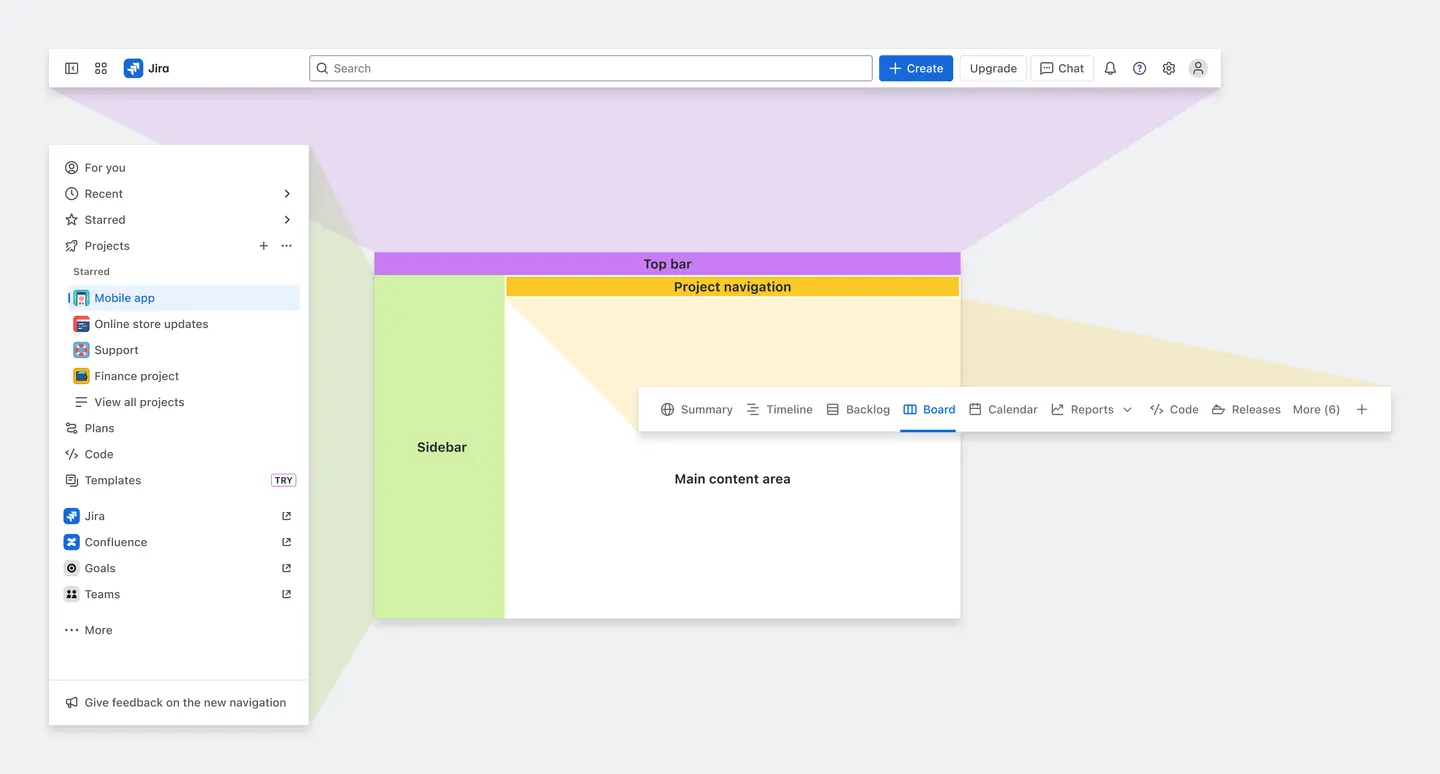
Whether you’re switching between projects, tracking progress, or collaborating with your team, finding what you need quickly is essential. Jira’s navigation is designed to be intuitive, flexible, and built to scale with your team’s needs. Key components of Jira’s navigation include:
The top navigation or top bar: The top bar contains actions that affect your entire site. These include searching, creating, switching sites and apps, and accessing utility items like notifications, global settings, Rovo chat, and your account.
The side navigation or sidebar: Navigation in Jira starts from the sidebar, where you can work across multiple projects, access essential items, and use Atlassian apps.
The project navigation: You can seamlessly switch between different views and explore features that pertain to the project you're viewing.
The main content area: The main content area is your primary workspace, and this is where the actual work happens.
Understand your navigation
The top bar, sidebar, project navigation, and main content area together form your view of the navigation.
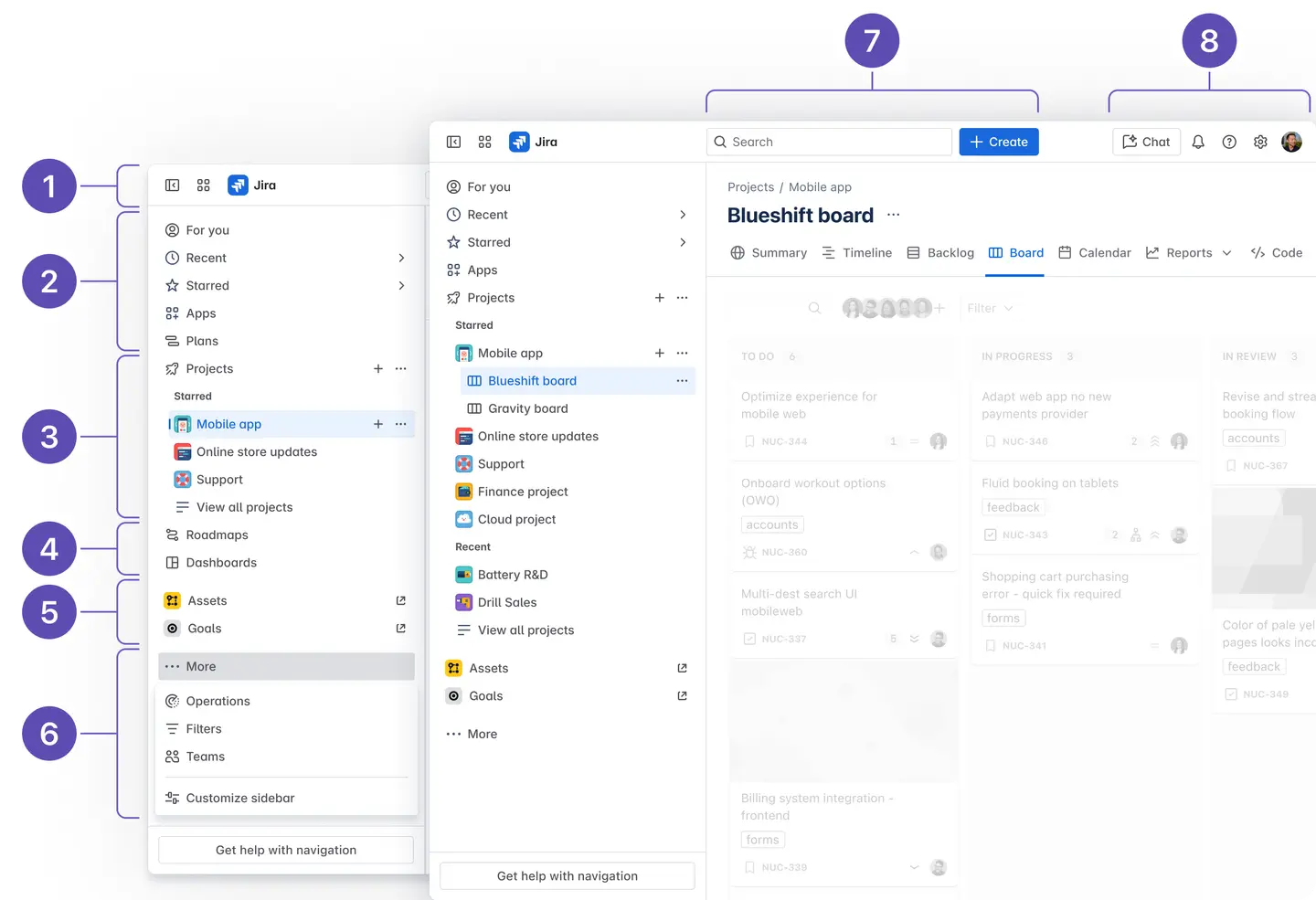
See your brand or product, and switch between Atlassian sites or apps
Access essentials like For you, Recent, Starred, and Apps
Browse available Projects and expand to navigate within them
View other navigation items like Dashboards
Go to Assets and Goals
Find More navigation items and Customize sidebar
Search across all products on your site, and Create issues and requests
Use AI Chat and find utility items like Notifications, Settings, and Account
What is Jira’s top navigation?
The top navigation or top bar keeps the focus on your essential tasks, such as Search and Create. With just a few clicks, you can search and locate work items, pages, and projects.
No matter where you are in Jira, the top bar is always present, so you can locate your work easily. The actions and elements on the top bar remain the same between Atlassian apps for consistency and smooth navigation throughout the Atlassian apps.
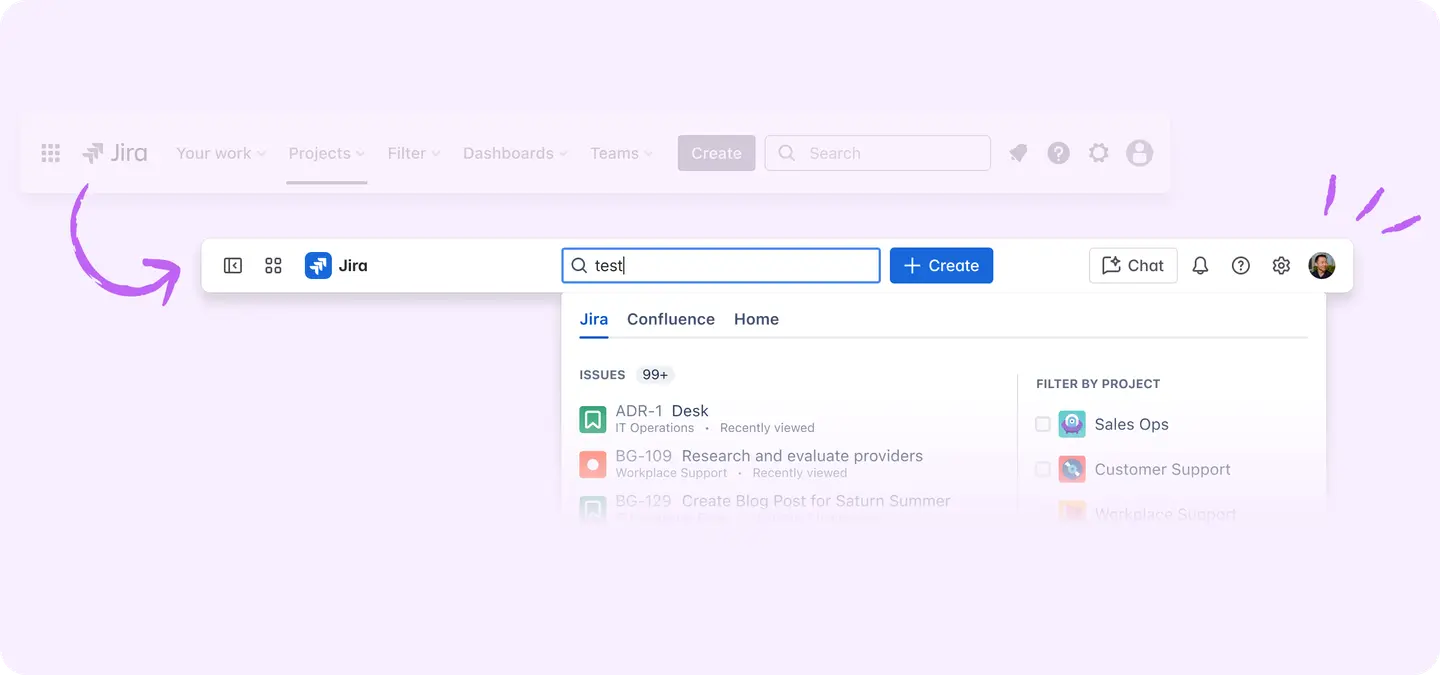
From the top bar, you can:
Expand and collapse the sidebar to maximize your screen’s real estate
See your brand or product, and switch between Atlassian organizations, sites, or apps
Easily search for and create work items that are grouped together and centered on the screen to make them the most accessible
Use Rovo-empowered AI chat and agents to find what you’re looking for and automate your frequent tasks
Access utility items like Notifications, Help, Global settings, and Account
What is Jira’s sidebar?
Navigation starts from the sidebar, and you can work across multiple projects and boards by easily switching between them.
Jira features a persistent sidebar across all your work to give you contextual awareness. This ensures that you know where you are at all times and have easy access to navigation options.
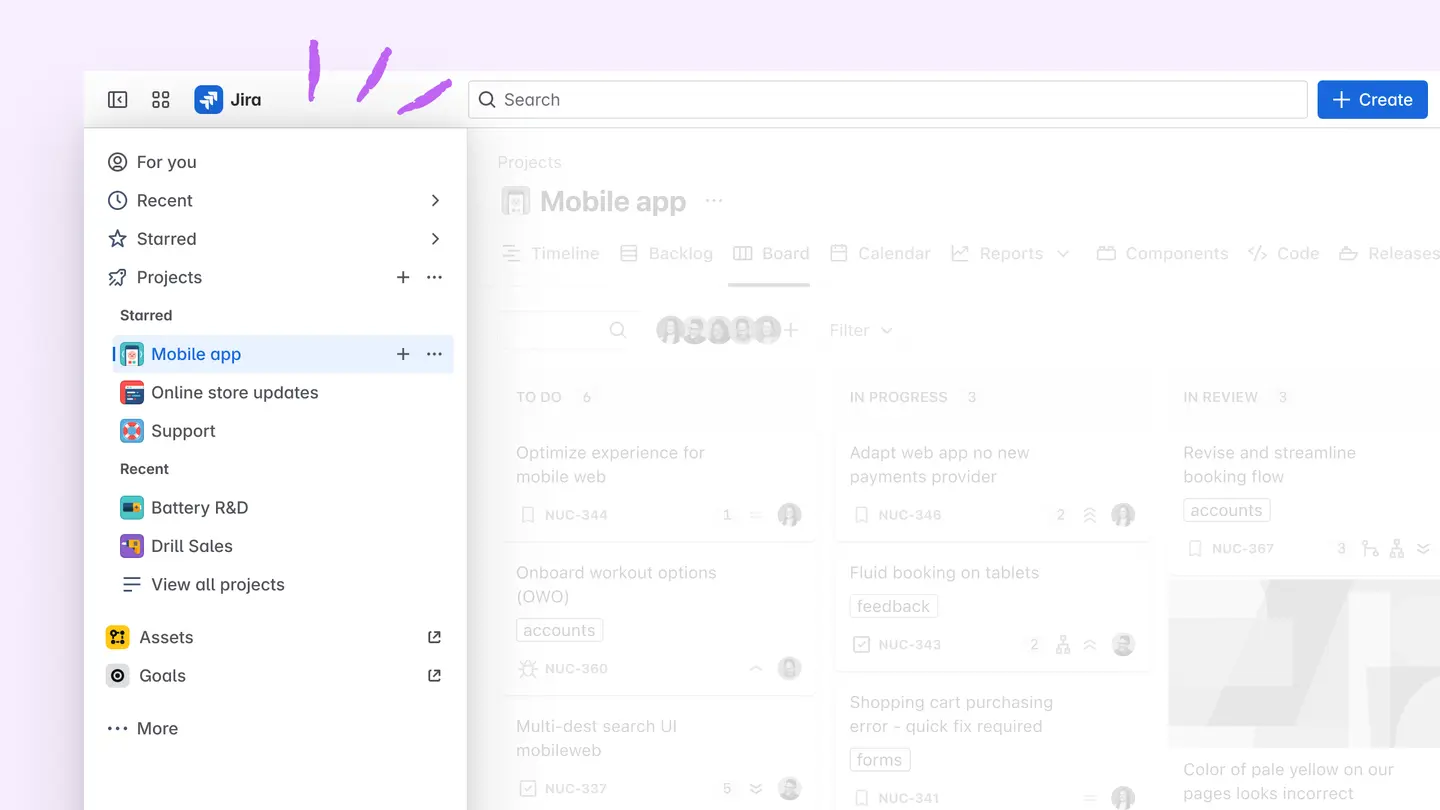
You can use the sidebar to:
Access essentials like For you, Recent, Starred, and Apps
For you: A personalized hub with your recent projects, items you’ve worked on, content you’ve viewed, work you’re assigned to, starred items, and more.
Recent: Projects, issues, boards, filters, and dashboards you’ve visited, edited, or created.
Starred: Your favorite items that you’ve marked with a star.
Apps (aka add-ons or plugins): These are installable components that supplement or enhance the functionality of Jira Cloud.
Work on your Projects and expand to navigate within them
Create a new project
Show or hide in sidebar
Manage projects and boards (only for admins)
View Dashboards and Filters
Go to Assets and Goals
Find More navigation items and customize them
What is Jira’s project navigation?
The horizontal project navigation in Jira offers different views that allow software and business teams to work in a way that suits them, while staying connected all in one place.
While the sidebar lets you seamlessly navigate between different Jira projects, the project navigation allows you to change between different views and explore features that pertain to the project you're viewing. If you’re a project admin, you can customize the project navigation to suit your team’s needs and reduce clutter.
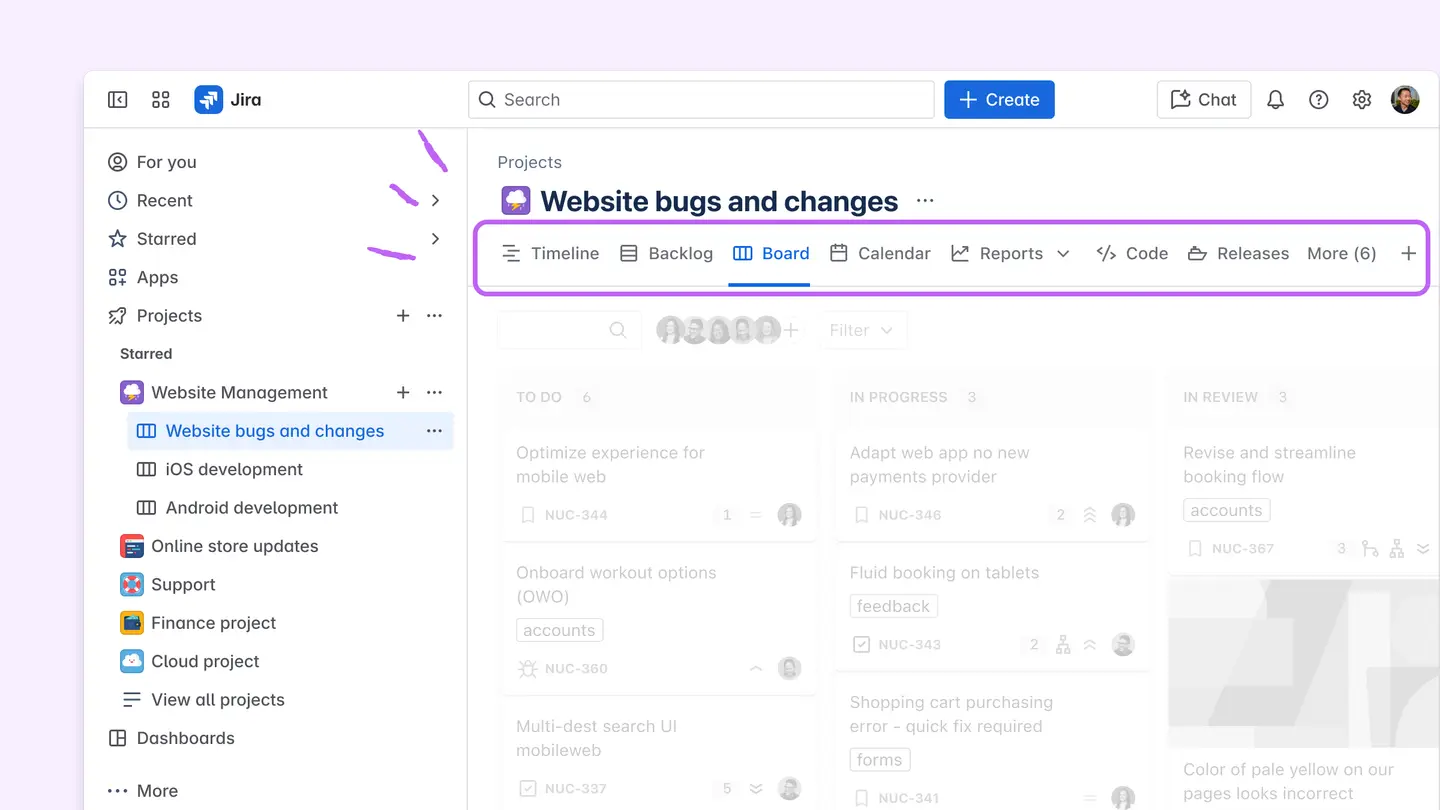
As a project admin, you can:
Control what your team sees in the project and board navigation
Display the tabs that are most useful and important to the team, and remove what’s not
Set a default view for a project or board to streamline the focus of the team
Rename and reorder tabs to reflect your team’s workflow
When you make changes to the project navigation, they will affect everyone who has access to the project. So, prioritize the views your team uses the most for a cleaner, focused tab layout that helps reduce confusion and keeps everyone aligned.
What is the main content area?
This is your primary workspace, where you’ll work with projects, boards, and work items. Whether you're planning sprints, tracking issues, viewing a roadmap, or reviewing a board, this is the space where you see and interact with your work.
The content in this space is dynamically updated based on your interaction with other navigation items.
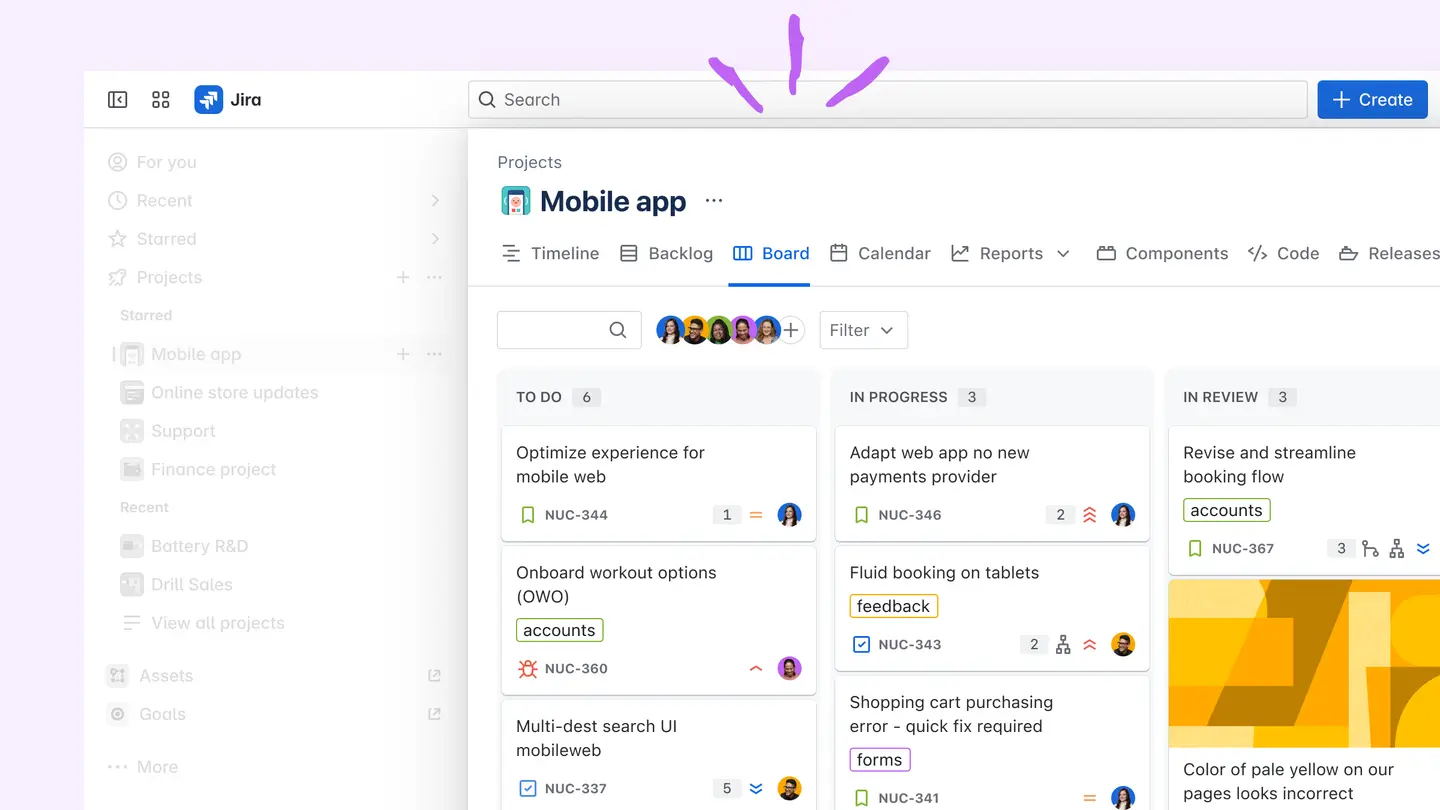

You can expand your main content area as per your preference by resizing or collapsing the sidebar.